
Table of Contents
Android Find Hub and tracking tags
Three Bluetooth tracker tags: the Chipolo POP (compatible with both Google Find Hub and Apple Find My), the UGREEN FineTrack Smart Finder (compatible with Apple Find My) and the Reyke GPS Tracker (compatible with Google Find Hub):

Reyke GPS Tracker Tag
The Reyke GPS Tracker Tag (model number S10) is actually a Bluetooth tracker, it does not have GPS capabilities at all. It's on sale on Amazon for around 16 euros (July 2025). It is compatible only with the Google Find Hub network.
Chipolo POP
The Chipolo POP is a Bluetooth tracker compatibile with both the Google Find Hub and the Apple Find My networks. In June 2026 it is priced in the range of 30 euros. On the first pairing it selects on which one network it will operate; by design, a tag cannot function on both of these networks at the same time.
UGREEN FineTrack Smart Finder
The UGREEN FineTrack Smart Finder is compatible with the Apple Find My network, in May 2026 it is priced in the range od 12 euros.
General considerations
For a tracker tag to work, you need to participate in the Find Hub network by enabling massive tracking of your movements ** on your Android mobile device. While this **significantly reduces your privacy, the service you receive in return is minimal (e.g., Google tracks your entire location history, but only discloses the last known location to the user).
The service is not suitable for tracking the location of, for example, a child, an animal, or for remembering where a car is parked. Typically, the latency for a tag's location to be updated in the app is a few hours. You should mark the tag as lost to enable lower latency.
Also using the tracker as an anti-theft device is to be considered; if the tracker has any anti-stalking features, it may start to make its presence known noisily, thus compromising its usefulness.
Not all information collected by Google services is shared with the user. For example, while Google knows the entire location history of devices and tags, the Find Hub app only displays the last known location. Google doesn't provide an API to access this data, so you're forced to use the app or its own website to access it.
The information provided by the Find Hub service is incomplete and unreliable. I have repeatedly observed discrepancies between the tags' location information provided by the smartphone app and by the same service provided on the web page. These discrepancies compromise the reliability of the service, which indeed is not guaranteed by any terms of service.
The workings of the Find Hub network are not clearly explained, and will likely change over time. You are required to accept the terms of use of the service, but you have no guarantee that the service will function in a certain way and that it will continue to guarantee certain performance over time. For example, the ability to track a tag from the Find Hub web page was disabled in July 2025 and is enabled in June 2026, but with no guarantee of continuity.
Need to enable a screen locker
To enable the Find Hub app to store your device locations, you need to enable a lock on your home screen: Settings ⇒ Security ⇒ Unlock Options. When you launch the Find Hub app, you will be presented with the same unlock request.
It's unclear what happens if the phone's screen lock is subsequently disabled. It's suspected that participation in the Find Hub network may be reduced or disabled, as this page How Find Hub protects your data states: If you set a PIN, pattern, or password on your Android device, it uses crowdsourced encrypted locations from other devices in the Find Hub Network to help find yours. And also: To take advantage of the Find Hub network and have the best offline finding experience, set a PIN, pattern, or password on your Android device.
You may need to remove and re-add the tag to the Find Hub network after the screen lock has been removed and re-enabled.
Indeed (June 2026) it turned out that if the screen lock is removed from the smartphone used to pair the tracker, the tag stops working with the crowd network. In this case it only functions as a Bluetooth tracker, that is, it is located only if it is within Bluetooth range of the paired smartphone. Most likely, Google continues to receive its location from the crowdsourced network, but refuses to display it in Find Hub, either in the app or on the web page.
Need to enable the Bluetooth
The Find Hub crowd network relies on many users have installed the required app, have enabled the relevant security options and have enabled the Bluetooth on their devices.
If you disable the Bluetooth on your smart device:
- Your tracking tag cannot exchange data with your smart device, so it is unable to communicate its position to the Find Hub network. It will result off-line and only the last known position will be shown.
- If you mark your tracking tag as lost, the tag will be eventually located by the Find Hub crowd network (using others users' Bluetooth).
- The Find Hub app will warn you and prompt you to turn on Bluetooth, but this shouldn't prevent you from locating your lost devices. However, it appears that Google treacherously degrades the app's performance if Bluetooth is turned off (see case #4 below).
The tag does not appear (sometimes) in the Find Hub web page
 WARNING: It is not clear if a tracker tag appears in the Find Hub web page! The same tag were not visible in July 2025, but it is actually visible in June 2026. The screen lock PIN/pattern is required to be active on the smartphone used to pair the tag, the same PIN/pattern must be entered on the web page to view the tag location.

 As you can see in the two pictures, the wireless tag does appear in the Android app of the phone which is paired to, but it does not appear in the Find Hub web page.
The problem is reported by several users. It may be a bug or, if the tracker is a “Find My Device” network accessory, it may not appear on the web version due to a deliberate restriction by Google prioritizing security, privacy, and a streamlined user experience. See this question asked to the Google support team.
You can view the tracker on another Android device, different from the one you used for the pairing. On this device you must install the Find Hub app and enter the authentication code (e.g. the PIN) in use on the pairing device.
In June 2026 it seems that Apple Find My service offered via the iCloud web service (https://www.icloud.com/find/) does not shows your tracker tags. You must instead use the native Find My app on a trusted, signed-in Apple device (e.g., iPhone, iPad, or Mac). See this discussion. It is very likely that Apple and Google will agree on a similar operating mechanism for their respective networks in the future.
Last seen info lags by hours
During normal operation (the tag is not marked as lost) the last seen info sometimes lags for long time.
Case #1
The tracker tag is in the same house where the paierd smartphone is. The last seen info is lagging by 12 hours. Eventually the info was updated later.
Case #2
The tracker tag in the same car where the paierd smartphone is: the car moves for about 20 km. in the Find Hub app the tracker remains at the starting point (last seen at 05:22), when the car trip started at 07:05 and ended at 07:35.
Case #3
Tag location updates appear to be significantly delayed in the Find Hub app or web page. Here it is an example of two tags located by the Find Hub crowd network, which location appeared several hours after on the app:
| Tag | Located by the crowd | Still not updated | Updated |
|---|---|---|---|
| Reyke tag | Thu 16:36 | Thu 21:00 | Fri 05:15 |
| Chipolo POP | Thu 19:06 | Thu 21:00 | Fri 05:15 |
It seems that the delay does not depend on the tracker model, but is a choice of the Google service. In this case the tags were not marked as lost, may be if a tag is markes as such, its updates are more frequent, but this is just a guess, unsupported by any official information.
This means that the Find Hub network knows the position of your tags, but it refuses to publish them timely on the app or web page.
Case #4
I turned off Bluetooth on my smartphone so that it could no longer detect the two tags I was carrying with me. The tags should then have been tracked only through the crowd network.
I observed a very strange difference in behavior between the Find Hub app and the Find Hub web interface. The app did not display any updated tag locations; even after tapping the refresh icon, it continued to show locations from about two days earlier. At the same time, I opened the Find Hub web page on my PC. There, the tag locations had in fact been updated just a few minutes earlier. As soon as I accessed the web interface, the app also refreshed and displayed the new locations.
This means that the information displayed by the app is completely unreliable, for unknown reasons. Perhaps Google penalizes the device for having Bluetooth turned off? If so, such behavior is neither documented nor justified.
Cannot show the tracker location history
It seems that the Find Hub app does not have the feature to show the history of the location of the Android Bluetooth trackers.
Even the timeline of full Android devices have suffered a restriction: Google has removed the Timeline feature from web browsers. You can now only access and manage your location history through the Google Maps mobile app. This change is part of a shift towards storing location data directly on your device for increased privacy.
Device not seend for 7 days
If the device is not seen for 7 or more days, its position is not longer shown in the Find Hub app. The position history is never available, but also the last known position is lost:

The Play sound feature
The Reyke Tracker is capable of playing a sound at increasing volume for 10 seconds, the volume is rather low, you will be unlikely to hear it in a noisy environment.
Sometimes the Play sound function fails, even if the tracker is in the Bluetooth range; the app will report the error so you can try again.
If the device where you run the Find Hub app is not in the Bluetooth range of the tracker, it cannot play the sound on the tracker. It seems that if you have another Android device linked to your same Google account and that device is in the Bluetooth range of the tracker, it may proxy the command for you. In my case it failed with the message Can't play sound (I was in the office and the tracker was at home in the same room with my tablet, but the tablet had Bluetooth turned off).
Tag marked as lost
On the Find Hub app you can mark the tag as lost. Starting from now the Find Hub network will help locate the device. This requires that an Android device partecipating to the Find Hub network pass in the Bluetooth range of the tag and send to the Google cloud that information.
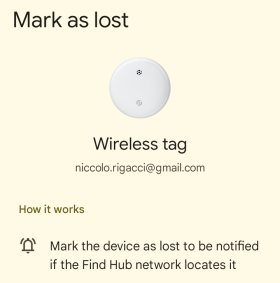
Partecipating to the Find Hub network requires the following in the Android settings:
- The Find Hub app is installed.
- The option Settings ⇒ Security ⇒ Find Hub must be enabled.
- Bluetooth is enabled.
Configuring the Find Hub security is a bit confusing: it is not clear which settings are used to locate your devices and which ones are used to participate on locating others' devices. The settings are supposed to work on a reciprocal basis: if you join the network to locate other users' devices with a certain level, you'll get the same level of service when you need to locate your own lost devices.
The most confusing setting is Find your offline devices because it actually affects both how you can locate your devices and how you participate to locate other users' devices. You can choose one of the following:
| Off | Find Hub does not store your devices' recent locations and the Android device does not participate in the Find Hub network to locate other users' devices. |
|---|---|
| Without network | Your devices' recent locations are stored only when they are on-line (for the tracking tag this means when it is in the Bluetooth range of your own smart device). The Find Hub network is not used: you don't partecipate to the crowd network to locate other users' devices and your lost devices cannot be located by the same network. |
| With network in high-traffic areas only | Your Android smart device participate to the Find Hub network helping in locate others' users lost devices, but only if you are in an high traffic areas, i.e. only if you are not the only one participant in the nearby. This setting seems to be reciprocal: your lost devices will be located by other users using the same criteria. |
| With network in all areas | This is the most pervasive configuration (lowest privacy level): your device will communicate (to the Find Hub network) the location of other users' devices even if you are the only one participating in the nearby. This setting seems to be reciprocal: your lost devices will be located by other users using the same criteria. |
NOTICE: If you switch from a mode with network to a mode without network, the location received so far for a device your marked as lost, will be deleted from your smartphone. You must to switch back to a “with network” mode and wait for another localization to be received.
Finding a lost device: a field test
This is a short report of a test conducted in June 2026. The estimated number of Android smartphone users in Italy is 23-25 million.
When a tag is marked as lost, it seems that the Find Hub network reports its location (gathered via the partecipating Android devices crowd) into the app at a more frequent rate, may be in near real-time as it gets new updates.
A field test showed that tags marked as lost and in motion received an update (in a medium-populated urban area) approximately every 15 minutes.
Neverthless it seems that the Find Hub app and Find Hub web service receives location updates of lost tags with some delay. I expereinced the app not showing any position update, then - suddenly - showing a new position registered b the crowd network 20 minutes before.
Tt seems also that the app delay is greather than the delay of the Find Hub web page.
When a tag is stationary (not changing position), Find Hub displays its location associated with its initial time. Therefore, it's not possible to determine whether the tag is stationary or simply no longer detected by the crowd network.
Unfortunately all these findings are just empirical evaluations, because you don't have any way to access data in a timely manner, nor you have access to historical data.
| Time frame in which the tracker is likely to be detected by the Find Hub crowd network | |
|---|---|
| Crowded areas (shopping centers, stations, urban centers) | Every 5 minutes |
| While moving in a vehicle in urban area | Every 20 minutes |
| Condominium in an urban area | 1-6 hours |
| Suburban houses | Every many hours or days |
| Rural areas | Days, or never |
| Occasional users passing in the nearby | Every 5 minutes, if the person's device participates to the Find Hub network. |
Other Android devices shown in Find Hub app
I have an Android tablet, which is automatically show on the smarphone Find Hub app, because I registered it using the same Google account. I didn't have to do anything for the device to show up in the Find Hub app, either the Find Hub app is not yet installed on the tablet itself.
The tablet is shown and the name of the WiFi network it is connected to is shown. Also the battery percentage is shown, but not its location (Location unavailable is the label).
To let the tablet share its location on Find Hub I installed the Find Hub app on the device itself and gave it location permission (Location ⇒ Allow only while using the app, Use precise location). I also disabled the Pause app activity if unused. It is also required to enable the Android Settings ⇒ Location ⇒ Use location.
Settings that affect Find Hub functionality and privacy
| Find Hub | Settings ⇒ Security ⇒ Find Hub | Allow the device to be located. It can be activated with different degrees of pervasivity: Without network With network in busy places only With network everywhere |
|---|---|---|
| Location | Settings ⇒ Location ⇒ Use location | The location can be enabled with different accuracy: Improve Location Accuracy which uses Wi-Fi, cellular towers and sensors; Wi-Fi scanning and Bluetooth scanning which use Wi-Fi and Bluetooth even if they are turned off. Location permission si granted on a per-app basis. It is possible to show which apps have location permission. Find Hub needs this to locate the device. When the Use location setting is enabled, your device can enable the timeline (i.e. the recording of your position over time). This is a device-specific setting that works even if location permission is revoked from the Google and Maps apps. |
| Bluetooth | Settings ⇒ Bluetooth | If Bluetooth is turned off, the device does not contribute to the network and cannot be discovered via Bluetooth by other Android devices. After pairing with the tag, you can still turn off Bluetooth on your smartphone and track the tag in the app or via the website. It's unclear whether Google penalizes this setting in any way. |
| Screen locker | Settings ⇒ Security ⇒ Password | The screen lock password (PIN, pattern, etc.) is used to encrypt data about device location before storing it, so that the information can be retrieved only by authorized devices. |
| Timeline | Settings ⇒ Privacy ⇒ Activity controls ⇒ Timeline | Remember where you've been, saving your routes to a map on each of your devices. It is a single settings of the Google account, it applies to all your signed-in devices. To view your timeline launch the Google Maps app and tap Your Timeline. The timeline is not accessible from the web browser. |
| Nearby devices | Settings ⇒ Apps & notifications ⇒ Google Play services ⇒ Permissions ⇒ Nearby devices | The app Google Play services uses this permission e.g. to find and connect to nearby devices. The Quick Start manual for the Reyke tracker suggest to enable this permission also for the Google Play Store app, but perhaps this is only necessary during installation. |
| Battery usage | Settings ⇒ Apps & notifications ⇒ … | No battery optimization should be enabled for the Google Play services and the Find Hub apps. With the default Optimized setting of Find Hub, you may receive less frequent updates about your tracked objects and you may partecipate less actively to the Find Hub crowd network. |
| Unknown tracker alerts | Settings ⇒ Safety and emergency ⇒ Unknown tracker alerts | When alerts are on, you'll get a notification if an unknown tracker is detected traveling with you. Alerts are deleted after 48 hours. |
Disconnecting
- Find Hub app ⇒ My Devices ⇒ Tap the tag ⇒ Settings ⇒ Remove from Find Hub
Android expects to find the device in the nearby, to reset its settings too.
Button operations
Reyke Android tracker (compatible with Google Find Hub)
These are the button features on the Reyke tracker documented in the manual
- Power on
- Press and hold the button for three seconds; the tag plays a chirp chime.
If the tag is not paired, it will enter pairing mode. If the pairing fails within 10 minutes, the tag will automaticaaly power off.
- Power off
- Press and hold the button for three seconds (but less than five): the tag plays two beeps.
- Factory reset
- Quickly press the button twice: the tag plays one beep.
- Press the button quickly four times, then press a fifth time and hold the button pressed: the tag plays a ring-ring chime.
During the pairing, if the pop-up does not appears on the Android device, tap on Settings ⇒ Google ⇒ All services = Devices ⇒ Scan for nearby devices.
If you replace the battery, the tag remains paired and it turns on automatically as soon you insert the new battery. Neverthelss you can check its status by pressing the button for three seconds: if it plays two beeps it is powering off, if it plays a chirp chime it is powering on.
Chipolo POP (compatible with Google Find Hub and Apple Find My)
- How to disable a tracker following you
- Press Chipolo POP once.
- Press again and hold for 10 seconds.
- Keep holding and release after 10th beep.
- When the Chipolo is disabled, you will hear a confirmation sound.
- To re-enable the Chipolo, press it again.
UGREEN FineTrack Smart Finder (compatible with Apple Find My)
- Power On
- Press and hold the physical button for 2 seconds.
- You will hear a confirmation beep and an LED indicator will flash, letting you know it is powered on. Note: If you do not pair it with the Apple Find My app within 5 minutes, it will automatically turn off to save battery.
- Power Off
- Press and hold the physical button for 6 seconds.
- Keep holding until you hear two short “didi” beeps.
- Release the button when you hear one final, longer beep to confirm the shutdown.
- How to reset the device
- Ensure the tracker is on.
- Quickly press the button 5 times (you’ll hear 3 beeps).
- Then press and hold for 6 seconds (you’ll hear 2 beeps).
Battery
The Reyke Android tracker uses a CR2032 battery. In emergency you can insert a CR2025 battery by adding a 0.7 mm thickness.
Anti-stalking feature
The Cipolo POP implements an anti-stalking feature: when the tag is not in the nearby of the paired smartphone, it emits a chirp sound at some random intervals. It varies from a single chirp to several ones. As a rouch reference, this is the timeline of the chirps:
- Wed 18:30 The tag is separated from the paired device
- Thu 10:00 Chirp sound played 4 times
- Thu 15:49 One chirp
- Thu 21:57 Two chirps
- Fri 04:20 One chirp
- …
These sound alerts are independent upon the Unknown tracker alerts that a person can activate on its own Android smartphone (Settings ⇒ Safety & emergency ⇒ Unknown tracker alerts). As documented in this Chipolo help page, in addition to these automatic signals, the Chipolo tag will reacts actively to unknown tracker scan that you can perform from an Android device.
The Chipolo POP tracker includes a BMA530 accelerometer which is used by the anti-stalking feature because it is more likely to play the sound chirp when moved.
It seems that the Reyke tag does not implement any anti-stalking function.
The UGREEN FineTrack Smart Finder has anti-stalking features like the Chipolo POP, including the accelerometer that is used to play the alarm when it is moved and it is away from the Apple device it was paired with.
Android unknown tracker scan
In addition to the anti-stalking features included in the tags themselves (which are automatically activated when the tag is away from the paired device for a prolonged period of time), an Android smartphone can activate the unknown tracker scan function (Settings ⇒ Safety and emergency ⇒ Unknown tracker alerts); any tags within Bluetooth range are shown in the smartphone and can be located by making them emit a sound.
There is currently no similar feature in Apple's network to discover unknown tags nearby.
Comparison with Apple Find My network
In 2026, it is estimated that Android will hold 62% of the smartphone market in Italy, while Apple will have 37%. This translates to approximately 32 million users versus 19 million. Given that Apple’s Find My feature is ON by default, while Google’s Find Hub is an opt-in option, it’s clear that Apple benefits a much larger crowd network.
From empirical tests carried out in June 2026, it seems that an Apple tracker benefits from a frequency of geolocation approximately double that of a similar one on the Google network.
Another difference is that an Apple tracker doesn't need to be marked as lost to receive timely updates in the app. Google, on the other hand, systematically delays tracker updates in the app and web service for trackers not marked as lost. Even when the tracker is marked as lost, the Google service generally doesn't offer real-time updates.
The only positive aspect of Google is that the location of the trackers is displayed not only in the app, but also in the Find Hub web interface; so you don't need to have your smartphone with you to find out their location. Apple's service, on the other hand, restricts the display of trackers to the iOS app only. However, this Google service feature isn't guaranteed to last; in fact, it appears to have been deactivated and then reactivated within a few months, without any official announcement.
Apple trackers paired with your smartphone can receive firmware updates with a simple tap on the app. This may change the tracker's behavior without warning, such as its anti-stalking features.