This is an old revision of the document!
Table of Contents
The Oukitel G2
Specs
| Screen | IPS LCD 6.0 inches, 92.7 cm2 |
|---|---|
| Size | 166 x 81.1 x 15.1 mm |
| Weight | 373 g |
| Screen resolution | 576 x 1156 pixels |
| OS | Android 14 |
| Chipset | Unisoc T606 |
| CPU | Octa-core (2×1.6 GHz Cortex-A75 & 6×1.6 GHz Cortex-A55) |
| GPU | Mali-G57 MP1 |
Rooting not longer allowed
Dear Oukitel,

I recently purchased a G2 smartphone, which I intend to use as
a GPS navigation system on a fleet of motorbikes.

To install some custom procedures, I need to root the device,
as I did with previous Oukitel smartphones (e.g. the WP12 model).
Unfortunately the G2 is based on the Unisoc chip and unlocking
the bootloader requires a signed file, but I don't have the key
to make it.

Please, can you provide the instructions to root the G2 model,
as you provided for the Android 13 phones? (as seen here:
https://oukitel.uk/blogs/news/how-to-root-android-13).

Thank you.
From: "contact@oukitel.com" <contact@oukitel.com>
Date: Thu, 28 Aug 2025 16:28:15 +0800 (CST)
Subject: Re: New customer message on August 27, 2025 at 8:37 pm

Dear customer,

Thank you for choosing our OUKITEL products and services,
we are deeply honored.
We are sorry to tell you that our phones don't support
root now, so we can't provide you with similar method.

Best regards,
From OUKITEL
Special boot menus
To enter the Recovery menu:
- Power off the device.
- Press the VolumeUp and Power keys, keep them pressed.
- Wait about 7 seconds for the Oukitel logo to appear and release the keys.

To enter the fastbootd menu:
- From the Recovery menu choose Enter fastboot

Best Flashing Tool: highly suspect malware
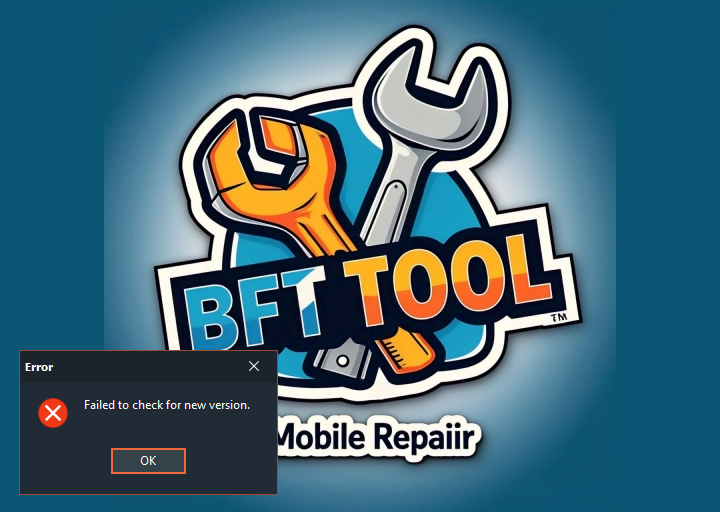
Online, you can find posts discussing a piece of software called BFT Tool (Best Flashing Tool, by Miracle Team), which supposedly can unlock the bootloaders of smartphones equipped with Unisoc (formerly known as Spreadtrum) chips.
The download links all point to anonymous URLs from MediaFire or MEGA.nz, and the various instructions tell you to disable your antivirus software to complete the installation — all of which are extremely alarming signs.
I decided anyway to test the program by installing it on a “sacrificial” Windows PC. In my assessment, Best Flashing Tool falls somewhere between being unreliable software and outright malware or a scam.
Every antivirus program flags it as malicious (e.g., Avast: Win32:MalwareX-gen, BitDefender: Gen:Variant.Yogi.11731, etc.). If you proceed with the installation anyway, the program refuses to launch, displaying the error: “Failed to check for new version.”